

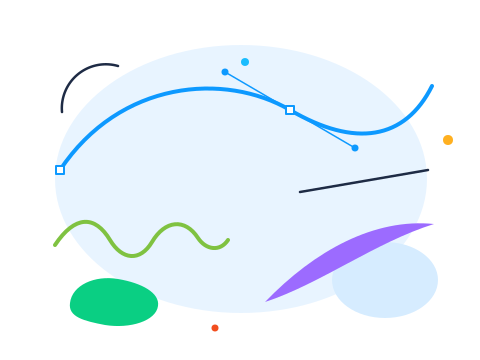
Draw
Seven ways to put a line on the canvas, from precise to painterly.
- Pen, precise bézier curves: click for corners, drag for smooth points, close with a click.
- Pencil, freehand strokes that snap into clean, editable paths.
- Calligraphy, ribbon strokes with a nib angle, like a real dip pen.
- Blob brush, paint filled shapes that merge into one as you go.
- Shaper, scribble roughly and watch it become a crisp shape.
- Line & Arc, dead-straight segments and clean arcs in one drag.

Shapes & grids
Parametric shapes that stay editable: change corners, spokes and turns any time.
- Rectangle, with live corner rounding.
- Ellipse, circles and ovals, from centre or corner.
- Star & polygon, spokes, inner radius, rounding and randomise.
- Spiral, smooth coils with turn and decay control.
- Rectangular & polar grids, rows, columns and spokes in one drag.
- Perspective grid, draw straight onto a perspective plane.
- Flare, a procedural lens flare, if you're feeling retro.
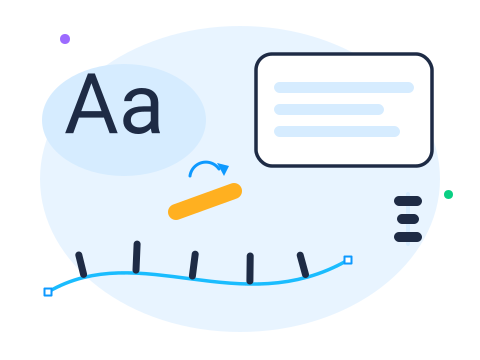
Text
Real typography, not stickers: five type tools that stay live and editable.
- Text, click anywhere and type; load any Google font or your own.
- Area text, flow paragraphs inside any shape.
- Type on a path, text that follows any curve, flippable and slidable.
- Vertical type, top-to-bottom columns, ideal for CJK and posters.
- Touch type, nudge, rotate and kern single characters by hand.
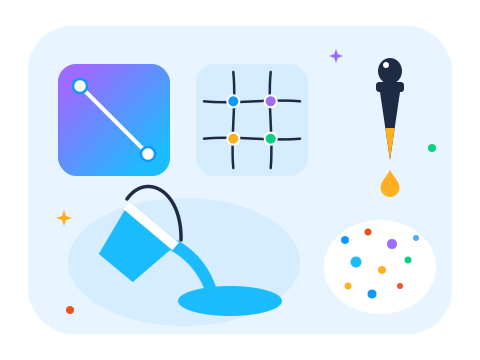
Colour & paint
Colour you shape on the canvas itself, with handles you can grab.
- Gradient, linear, radial and conic, edited directly on the artwork.
- Gradient mesh, multi-point colour meshes for soft, painterly shading.
- Paint bucket, click to fill, smart about small gaps.
- Eyedropper, lift fill, stroke and text styles from anything.
- Spray, scatter copies of any object along a stroke.

Select & organise
Grab exactly what you mean, then keep a growing file tidy.
- Select, move, scale and rotate with live handles.
- Lasso, freehand selection for awkward clusters.
- Magic wand, select everything that shares a colour or style.
- Node editor, every anchor and handle in the file, editable.
- Artboard, multiple pages and sizes in one document.
- Connector, diagram lines that stay attached when boxes move.

Reshape
The biggest family: twelve tools for cutting, merging and sculpting paths.
- Shape Builder, merge and subtract by dragging across overlaps.
- Eraser, Scissors & Knife, cut through anything, cleanly or freehand.
- Width, variable-width strokes, point by point.
- Smooth, Join & Tweak, relax jitter, bridge gaps, sculpt outlines.
- Add / Delete / Convert anchor, surgical node edits.
- Blend, morph one shape into another in editable steps.
- Envelope & Intertwine, warp artwork in a frame, weave overlaps over and under.
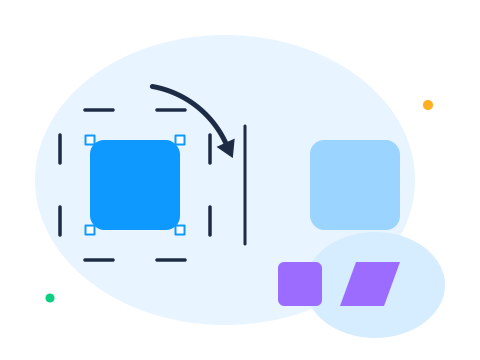
Transform
Precise transforms around any pivot, numeric or by eye.
- Rotate, around any point, with angle snapping.
- Scale, proportional or free, from any origin.
- Reflect, mirror across any axis.
- Shear, controlled slanting for shadows and isometrics.
- Free transform, corner-drag distortion in one gesture.
Measure & view
Get around a big file and prove the measurements.
- Zoom & Pan, smooth GPU navigation, down to pixel level.
- Measure, distances and angles between any two points.
- Dimension, engineering-style dimension lines that live in the artwork.
Proof, not promises: every example above was drawn inside Rayzia with the exact tools it illustrates, by an AI driving the editor over MCP. That's a Rayzia feature too →
Common questions
How many drawing tools does Rayzia have?
Over 50 drawing and editing tools, from the pen, pencil and calligraphy brushes to Shape Builder, gradient mesh, type on a path and engineering-style dimension lines, plus more than 150 live effects. Every one of them is free.
Are all the tools really free?
Yes. Every tool on this page works on the free plan, with no trial timer and no watermark on your artwork. Pro adds cloud storage, version history and pro export around the editor, never the tools themselves.
Can an AI use these tools for me?
Yes. Connect the AI account you already have (Claude, GPT and others) and it can drive the same tools: draw shapes, recolour, arrange layouts and edit paths right on your canvas. In fact, every example illustration on this page was drawn inside Rayzia by an AI driving the editor.
Do I need to install anything to use them?
No. Rayzia opens like any website and runs on Windows, Mac, Linux, ChromeOS and tablets. Your work auto-saves to your device as you draw, and the editor keeps working offline.
Doing one specific thing
Each of these walks through a single job end to end, with the tools it needs and nothing else. Start here if you know what you want to change.
- Edit an SVG, Open a file and change any shape in it.
- SVG to PNG, Export at any size, with or without a background.
- SVG to PDF, Print-ready pages from vector artwork.
- Change SVG colour, Recolour one shape or the whole file.
- Crop an SVG, Trim the artboard down to what you want.
- Resize an SVG, Scale without losing a single edge.
- Add text to an SVG, Set type on the canvas and keep it editable.
- Text to outlines, Convert type to paths so fonts travel with the file.
- Transparent background, Drop the background and export with alpha.
- SVG viewer, Open and inspect a file without installing anything.
- Edit an SVG for Cricut, Prepare a cut file that a machine will read.